


|
|
Open a camera image of a
target.
Note that the image must be in JPEG format and at least 200 x 200 pixels
in size. |
|
|
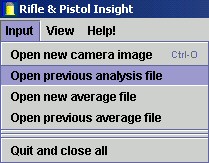
Open a previously saved analysis file.
|
|
|
Open a new window to allow multiple
saved Analysis Files to be averaged. (see Average
Panel.) |
|
|
Open a previously saved 'Average
File'. (see Average Panel.) |
|
|
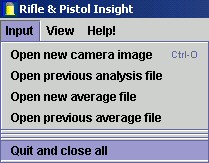
Closes all open windows and then
quits the programme. Note that any windows that have been 'minimised'
will remain open and the programme will not quit. These windows must
be expanded and "Quit and close all" called again or each window should be
closed individually. |
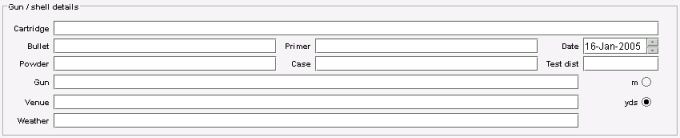
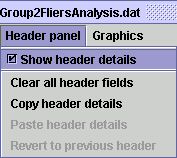
The header panel is for recording the test conditions. None of the fields affect the calculations.
|
Once the shell and test conditions have been entered the header panel can be hidden from view to make available a larger screen area for working with the target image. A hidden header panel will still be shown on hard copy print-outs when using the Print as shown on screen option. |
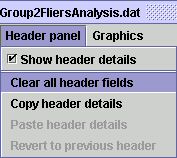
To speed the copying of details from one header panel to another during load development, details can be quickly copied to and from different panels as described below:
 
|
Decrease / increase the size of the image. Does not affect any of the statistical calculations. |

|
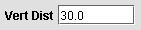
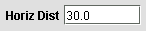
Set the scale of the image. Drag the up/down arrows on the image to indicate a known vertical distance on the image and the left/right arrows to indicate a known horizontal distance. Move the graticule to indicate the point of aim. |
|
Horizontal / Vertical fields to enter the true distance indicated by the scale setting arrows. |
|
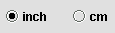
The distances may be input in imperial inches or metric cm.
The calculated spread statistics of the group will use the same
units.
(Note: If the units of measurement are changed the numerical group statistics will appear not to change. The reason for this is that the distance indicated by the scale arrows has also been converted to the new units.) |

|
Enters
or exits the add annotations / notes mode. "Double
clicking" the target image will open an editor box to allow
notes to be entered. Double clicking an existing annotation will
open it for editing or deletion. Clicking and holding the mouse over
an existing annotation box and dragging the mouse will move the
annotation box.
(Note: The automatically generated annotation box showing the spread statistics cannot be deleted.) |

|
Add or delete bullet holes. When enabled clicking on the target image will add a hole shown as a blue marker. SHIFT+clicking over a blue hole mark will delete it. Two hole markers cannot be added directly on top of one another. |

See the table below for an explanation of the numbers. The colour coding for the numerical and graphical calculations is:
|
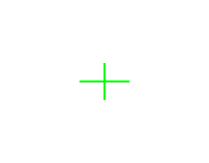
The green cross shows the average
Point of Impact (POI).
The numerical value is shown as "Average point of impact : horiz / vert". If this was to be calculated by hand it would be found by adding all the horizontal distances of the holes and then dividing by the number of holes to give the average horizontal position. The would be done for the vertical positions of the holes. This is also known as the mean average. |
|
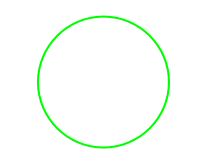
The green circle or oval shows
the average radius as measured from the average POI.
The numerical value is shown as "Average radius". If this was to be calculated by hand it would be found by measuring all the distances from the previously calculated average POI to each hole, adding all the distances together and dividing by the number of holes. |
|
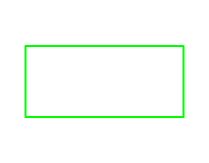
The green rectangle shows the average horizontal and vertical spread. These are the +/- one standard deviations horizontally and vertically. The numerical value is shown as "Average spread : horiz / vert". If these were to be calculated by hand the method would be as follows: For each hole measure the horizontal (or vertical) distance from the average POI and square the distance. Add all the squared distances and divide by the number of holes minus one. The square root of this number gives what is known as the horizontal (or vertical) standard deviation of the group. |

|
The red line between two points shows the maximum spread between two
points. This is the traditional measure of group size.
The numerical value is shown as "Extreme spread between two points". |
|
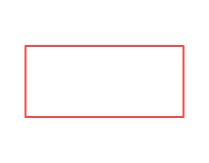
The red rectangle shows the extreme horizontal and vertical spreads.
The numerical values are shown for the horizontal and vertical separately as follows: "Extreme horizontal spread : total / left / right" "Extreme vertical spread : total / high / low" Note that the total extreme spread gives the maximum horizontal or vertical distance between two or more points. The left / right and high / low figures are calculated compared to the average POI. |
|
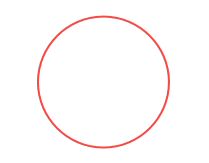
The red circle / oval shows the extreme radius. This shows the maximum
distance of a hole from the average POI (the green cross) and treats this
distance as a radius and draws a circle with this radius about the average
POI.
The numerical value is shown as "Extreme radius". |

|
The orange lines show the "string" distances. The total string
distance is the sum of all the distances from the Point of Aim (POA).
The numerical values for the string measurements are shown as "String length : total / max / ave". These show the total string distance, the maximum and average distance of each hole from the POA. The average string distance allows easier comparisons between groups containing different numbers of shots. |

|
The scale markers are used to show a known vertical and horizontal distance on the real target. If the camera is not perfectly aligned with the target these horizontal and vertical distances will not be horizontal and vertical on-screen. The scale markers can accommodate this and all the results are corrected for the rotational error. i.e. the "horizontal" spread is shown not as horizontal with the screen, but with the horizontal indicated by the scale markers. Experiment with extreme rotations to see how it works. Up to 5-degrees of correction can be accommodated. |
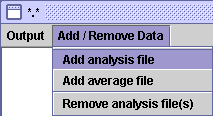
Menu functions unique to the Average Panel.
Interpreting the Average Panel numerical results.
Averaging allows analysis of multiple groups/targets. If for example over a whole year of varying weather conditions and altitudes test groups had been taken, they could all be added together to see which shell gave the best performance over real-world usage conditions. Rifle & Pistol Insight offers two alternatives for handling averaged groups - if you use them, make sure you understand them! See: Interpreting the Average Panel numerical results.


Delete the file(s) highlighted in the list of the Average Panel. It is possible to highlight multiple files in the list of analysis files. Dragging the mouse across multiple lines a selects continuous series. Pressing the "Control" (CNTRL) key while clicking the mouse on lines allows a discontinuous series to be selected.
The AVERAGE OF SHOTS and AVERAGE OF GROUPS look very similar display with almost the same fields, but the number will most times be very different. The different ways they handle the data needs to be understood.
To help with examples, consider two five shot Groups A and B. Group A has a 1" average spread and is around the POA. Group B has a similar average spread of 1", but the POI has been set 6" above the POA.
The AVERAGE OF SHOTS is the easiest to understand. This treats all the shots as though they had been fired at a single target with a single point of aim (POA). It takes all the positions of all the points in all of the analysis files and performs the spread calculations as though it was dealing with one large analysis file. Using the two example groups, the average spread would be reported as very much larger than 1" because of the 6" shift of the sights. For fixed sight guns this averaging method shows how the gun groups long term or over several targets or varying weather conditions.
The AVERAGE OF GROUPS is better for when big systematic changes have been
made such as the sights being adjusted. Rather than take the raw shot position
and calculate everything afresh, it takes the previously calculated spread and
POI figures from the analysis files and averages these. In this way, the average
spread of Group A and Group B would be reported as approximately 1" - which
is what is wanted in this case. The average of the POIs is calculated and with
this example would be approximately 3" (the average of ~0" and
~6"). Similarly, all the other spread figures are averages of those
previously calculated. The averaging method takes account of groups with
different numbers of shots. The spread statistics of a group of 10 shots would
be weighted twice as high as a group of only 5 shots.
(c) A C Jones January 2005